
Manufacturer contact:
manage.it GmbH & Co. KG
Schertlinstr. 39
86159 Augsburg
Germany
Phone: +49 (821) 25967-0
E-Mail: info@manage.de
Introducing dragon.PDA
dragon.PDA is an application designed to collect, store, and analyze data from defined measuring points (PLC-based machine sensors). The system supports both real-time monitoring and historical data analysis. With its auto-refresh functionality, dragon.PDA can also be used as a live data plotting tool (“dot recorder”), continuously visualizing incoming sensor values. The application is built on Oracle technologies (Oracle Database and Oracle APEX) and follows a robust, database-centric architecture. A default installation of dragon.PDA includes a license for up to 10 users. The standard application language is English.
dragon.PDA Login


Notice: Is there a Button shown “set product license” there is a problem with the product licensing.
After the login the user starts on the dragon.PDA start page and can set his own Personal Settings like sensor selection initialization behavior and his preferred date format which is applied in the whole application.

If there is a fault in the PLC communication (e.g. Network offline) between the PLC/OPC and the
dragon.CCA Windows Service program, you can see the status on the PLC dashboard.

The System/Version Information displays details about the Scheduler, Backup status and Oracle Versions.

At the bottom you can find a “Customize” option to change the default user UI Theme to another listed default Theme Style.
Notice: No further interaction is possible while data being loaded (milky screen).
dragon.PDA Navigation Menu
In the upper right Screen you see the application menu.

Clone session: create a new tab mode with a new session id.
Username: You can sign out here or change your password (dragon.XPF).
Help: this document 😊
dragon.PDA Breadcrumb navigation

The dragon.PDA use the breadcrumb navigation for a better orientation. The hierarchy and structure of the Application is much more transparent with breadcrumb navigation than with single menu navigation.
dragon.PDA Windows Service and Application Status
A new Feature in the dragon.PDA Version since 3.0 is a Windows Tray icon. You can always see the status for all relevant and necessary service programs (Veeam Agent icon is also shown). If one of the applications are not running or connectable, the tray icon will become red.
| How the icon looks like, if all relevant dragon.PDA Service Programs are still “running” | |
| How the icon looks like, if one/more relevant dragon.PDA Programs are not “running” |
Notice: The Veeam Agent is relevant for the dragon.PDA Backup Jobs.
If you click on the tray icon the dragon.CCA Windows Service program will be shown. At the top of the page, you will find the logs from the Windows Service Handler, which can be configured to a specific log level.

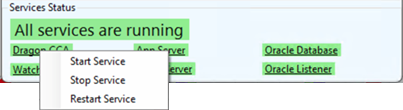
By right-clicking on each service name, you can start, stop, or restart a service. However, you must run this application as an administrator to do so.
dragon.CCA Settings Page
In the settings page, located in the top section, you can edit the database connection settings and set the interval (in seconds) for the watchdog service.
*
Here is a list of all relevant Windows Services and Applications:
- dragon.CCA
- Apache HTTP Server
- Apache Tomcat 9
- OracleOraDB19Home1TNSListener
- Oracle Service DRAGON.PDA
dragon.PDA Cockpit
Users have several options to define and select a date/time range for analysis. The primary method is to specify a start and end date/time. Users can either use the calendar function to select the desired time period or enter the date and time directly in the specified format and confirm with Enter. Alternatively, predefined time ranges can be selected from the “Set time period” list (e.g., one minute or 30 minutes).
Notice: The selected date/time range is validated against the configured data retention period.
Data Mode NORMAL: the maximum allowed range is based on DAYS_RETAINING.
Data Mode HISTORY: the maximum allowed range is based on DAYS_RETAINING_HISTORY.
If the selected date range exceeds the allowed retention period, the request is rejected to prevent invalid or unavailable data ranges.
dragon.PDA User Settings and Sensor Selection
- Set time period: Choose a time period from now (10 sec. of current time, one hour or one day).
- Data Mode: Normal (current data table) or Historical (history data table).
- Auto Refresh: If “true” the screen will be refreshed by given Time Interval (secs). On this page, the Auto Refresh function will update the latest/current sensor value (the time period move forward).
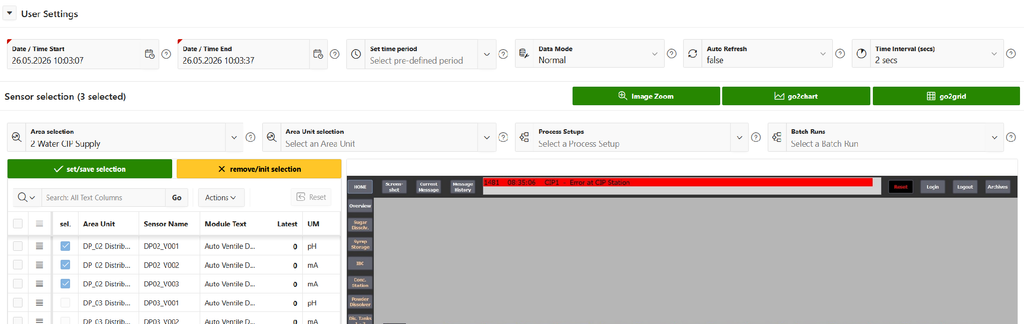
Notice: If the “Reset” Button is active (for all interactive Grids) you can restore the standard view with one click. In the Actions menu you can also show/hide columns or download the data sheet as a file.
- Area (manual) Selection
Users can select an Area, after which all assigned sensors are displayed in the Area Sensor Selection grid.
To select a sensor, choose the desired entry in the grid and click the “set selection” Button.
The selected sensor will then be marked accordingly with a blue checkbox. If no sensors are selected, the “go2chart” and “go2grid” buttons are not visible. If there are an Area Sensor Editor configuration, sensors can also be selected directly by clicking on the corresponding rectangle (hitbox) in the area image.
- Area Unit Selection
Within an Area, users can select a specific Area Unit (e.g., “Tank 3”). After selecting an Area Unit, all sensors assigned to this unit are displayed in the selection grid. Depending on the configuration, these sensors can be selected directly for further analysis.
- Process Setup Selection
Users can select a predefined Process Setup (e.g., “Cleaning / CIP”). A Process Setup represents a predefined group of sensors associated with a specific process. Once selected, all related sensors are automatically selected and available for further analysis.
- Batch Run Selection
dragon.PDA supports process-based sensor event handling, allowing predefined Process Setups to be instantiated and executed. Each execution of a Process Setup is recorded as a Batch Run. A Batch Run represents a defined process cycle and includes start and end timestamp (would be set automatically as Date/Time range and the associated Area Units and all relevant sensors assigned to the process.
The Sensor Data Grid displays key information for each sensor including Area Unit, Sensor Name, Module Text and Unit of Measurement. The current value is particularly relevant when the Auto Refresh functionality is enabled. In this case, the value is updated at defined time intervals, provided the sensor is configured to “Update current values”.
- Image Zoom: Shows the Image on a separate page as full sized picture.
- set selection: The marked (checkbox) Sensors will be set to “selected”.
- remove selection:
- If no Sensors are selected: all Sensors will be rejected.
- If a Sensor is selected: only the selected Sensor will be rejected.
- go2chart: generate the dragon.PDA Chart for selected time period, data mode and sensors.
- go2grid: generate a Data Grid for selected time period and sensors (for data analysis) – depending on which Data Mode (Normal or Historic) is selected.
Notice: How a dragon.PDA Error Message looks like
dragon.PDA Area / Area Unit Image
The Area / Area Unit Image is displayed in the right-hand section of the screen. The image is configured in the Administration section (Area Setup and Images).
If sensor coordinates are defined for the selected Area or Area Unit, the system displays corresponding rectangles (hitboxes) on the image. Each hitbox represents a sensor and includes color mapping, sensor name, current value. These visual elements are based on predefined sensor positions configured in the administration area.
Depending on the user’s selection, the relevant sensors are displayed dynamically and updated in real time when Auto Refresh is enabled. Selected sensors are highlighted, while non-selected sensors are displayed with reduced opacity.
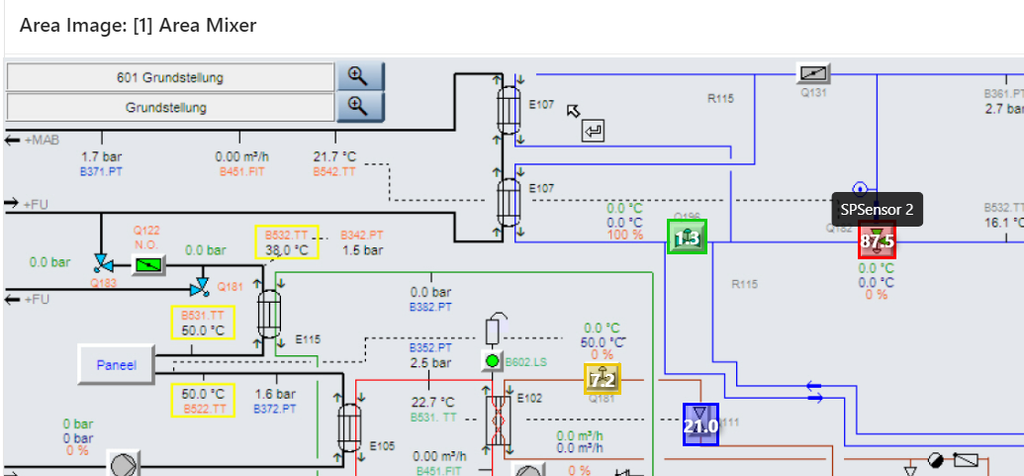
(How an Area/Unit Sensor coords hitboxes defined in the Area Editor looks like)
dragon.PDA Chart
This is a core part of the dragon.PDA Frontend application. The collapsible Menu dragon.PDA Series Control is a user saved data panel. To see more of the chart, collapse the panel by clicking the arrow.
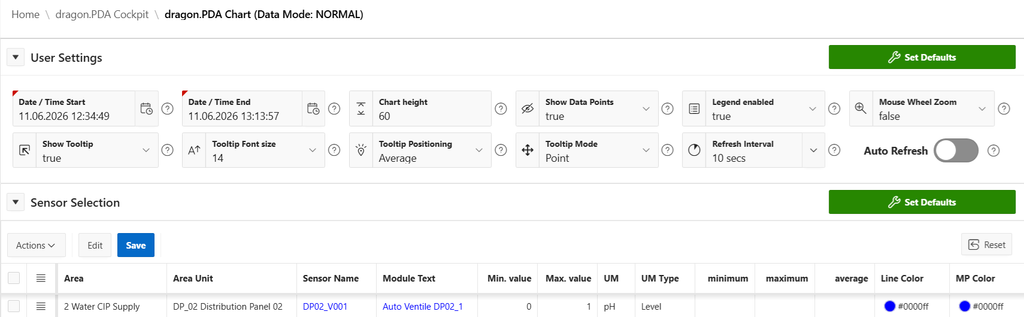
Notice: By clicking on the question marks, you will get a lot of useful information about the elements. Question mark help can also be found by clicking on the grid column headers.
dragon.PDA User Settings
- Date / Time Start/End: Set your Date/Time Period. On change/enter the page will be refreshed.
Notice: The time interval is decisive for the loading time of the chart data.
- Auto Refresh: As in the dragon.PDA Cockpit, the chart can also “plot” current data. You can set this option to “true” by a given Time Interval. You can also set a date in the past to analyze legacy data.
- Chart height: In a time of so much different Screen/Monitor resolutions it makes sense to have the option to set an individual chart height (valid values are between 30 – 300).
- Show Data Points: Shows or hide Measure points.
- Show Tooltip: You can hide Chart tooltips by setting this option to “false”.
- Tooltip Font size: It is possible to set the Tooltip Font size here.
- Tooltip Positioning: You can set up your Tooltip Positioning. “Average” mode will place the tooltip at the average position of the items displayed in the tooltip. “Nearest” will place the tooltip at the position of the element closest to the event position.
- Tooltip Mode: It is possible to change the behavior of the Data Tooltip (Default: Point).
- Legend enabled: If “false”, the Chart Legend (on top of the chart) will be hidden.
- Mouse Wheel Zoom: It will zoom the chart on the position where the mouse pointer is.
At the bottom of the dragon.PDA Series Control you see the detailed List of your selected Sensors. You can see the columns minimum/maximum/average range values for each Sensor in the selected time period. If this field values are empty (null) there was no data found for the selected time period.
They are some options for any Sensor you can set explicit e.g. Line Color, Point Style or Line width – have fun to discovering the possibilities 😊. Click on the “Edit” Button, set up your series chart layout settings and click “Save” – after that the chart will be refreshed.
The Chart itself
Each line (series) represents the measurement points of a selected sensor. The X-axis always reflects the actual time range of the available data. It is data-driven, meaning the timeline is generated based on the recorded values. For each series (sensor) there are one Y-Axis that shows the Unit of Measurement (UM) and the data range.
Normally the defined sensor min/max value is used, unless it is determined during data generation that these values have been exceeded or undershot, in which case these values are used. To see always the full range of the Y-Axis the Chart will set automatically 10% to the min/max value.
You can hide any series Y-Axis by set the option in your dragon.PDA Series Control. The chart graphic is full responsive. If no data can be retrieved, the chart is empty.
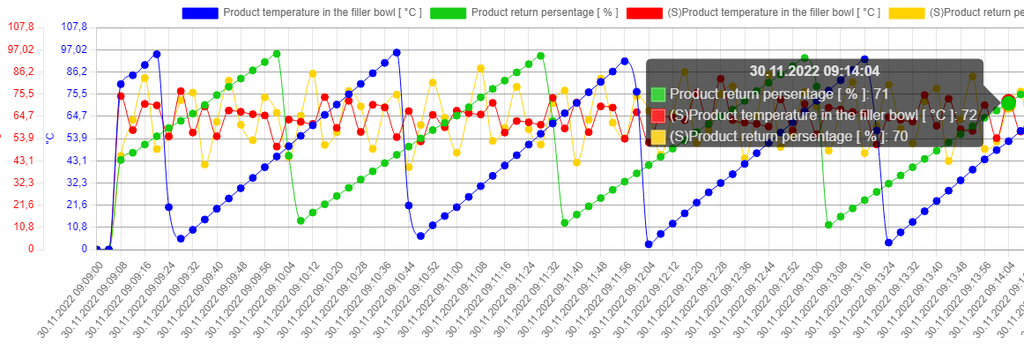
At the top of the chart, the legend displays all available series. By clicking on a legend item, the corresponding series can be hidden or shown. To view detailed information about a measurement point, move the mouse cursor over the corresponding marker. A tooltip will appear, displaying the relevant values for that timestamp, highlighted using the same color as the series.
dragon.PDA Chart Image (printing/saving)
To save or print the displayed Chart as an image you can click the right mouse button (context menu) or maybe your Browser support the “Screenshot” feature.
dragon.PDA Grid
Since dragon.PDA version 2.0, a data grid is available to display detailed sensor data for the selected time period. The grid supports various analysis functions, including searching, sorting, filtering or grouping.
Depending on the selected time range, loading the data may take some time, as all recorded data within the time period is retrieved and processed.
dragon.PDA Batch Runs
A Batch Run represents one concrete execution of a defined Process Setup. It is created when the configured start event of a batch set is triggered, for example by a sensor signal or machine event received via the connected C# Middleware. From that moment, dragon.PDA treats the process as an active runtime instance and stores the relevant execution data and status.
If the Batch Run is finished the Users can select them in the dragon.PDA Cockpit – all defined Sensors will be selected and the Batch Run Start-/End date would be set directly.
dragon.PDA Process Setups
Each Process Setup serves as a reusable template (e.g., “CIP Line 1” or “Orange Juice 0.5L Production”) and defines which sensors are involved in that process context. These definitions ensure that users can quickly and consistently select the correct set of sensors without manual configuration.
When a process is executed, it is recorded as a Batch Run, which represents the actual runtime instance of a Process Setup. The Batch Run captures real-time data, timestamps (START/END) and results, enabling detailed analysis and traceability of the process execution.
If you now navigate to the Process Details Page you can define how your process is looks like. You can define areas, area units and all the important sensors which are involved in the process.
Each entry represents a sensor that participates in the process and can be ordered using the Position field to reflect the logical sequence or priority within the process flow. Optional event settings allow you to define how sensor values are interpreted during execution (e.g., triggering events or monitoring conditions).
The defined sensor configuration forms the foundation of the process logic and is reused during execution.
When a process is started, it is recorded as a Batch Run, which uses this setup to collect and analyze real-time sensor data. By maintaining a consistent and well-structured Process Setup, you ensure reliable monitoring, reproducible process execution, and meaningful analysis of all related sensor data.
Notice: If you want to hide/disable some sensors for a Process you can set Is Active to “No”.
Batch Event Codes
This customizing table defines the possible event codes used for batch or process executions. An event code represents a relevant occurrence during a process, such as start, intermediate step, end, success or error.
These entries are used as a List of Values (LOV) when configuring Process Details and determine which meaning a sensor event signal has within a batch run. The field Severity allow additional classification of the event, for example distinguishing between normal process information and error conditions.
Sensor Event Modes
This customizing table defines the sensor event modes capabilities used for process/batch executions.
It controls whether a sensor uses no event handling, data change event or event subscription and provides the corresponding technical mapping value for the C#-PLC/OPC middleware.
Sensor Triggers
This configuration table defines sensors with a trigger functionality to the C#-PLC/OPC middleware.
Current Trigger Codes are: 10 – This trigger code will start data archiving in general
Notice: Changes to the sensor trigger configuration are automatically transmitted to the dragon.CCA
middleware service in real time.
dragon.PDA Job Management
The Job Management page provides an overview of all scheduled background jobs and their execution history within the system. The Job Logs section provides a combined view of upcoming scheduled job executions and previously executed jobs and their results. The Job Scheduler section displays all available scheduler jobs defined in the database.
Notice: The creation, modification, and scheduling of jobs should only be performed by trained personnel or system administrators. Incorrect job configurations may impact system performance or data consistency.
dragon.PDA default Jobs
CLEAR_DATLOG: Clear MIT_DATLOG based on setting for DAYS_RETAINING
CREATE_TS_HISTORY: Clear MIT_DATLOG_HISTORY based on setting for DAYS_RETAINING_HISTORY
CREATE_DATA_HISTORY: Table History of growing data
CLEAR_DATLOG_HISTORY: Tablespace History of growing data
COMPRESS_HISTORY: Compress equal Data in Table MIT_DATLOG_HISTORY
dragon.PDA System Log
This section displays system logs for dragon.PDA. To enable logging, navigate to Global PDA Configuration and set the Debug Log option to “Yes”. When enabled, all application function calls, events and errors captured by the APEX Error Handling Function will be recorded and displayed here.
dragon.PDA Administration
This Application Menu is only accessible with the appropriate authorization for dragon.PDA Application Administrators. Modifications to the dragon.PDA configuration and customization should only be carried out by trained personnel.
Global PDA Configuration
A Configuration Table (MIT_CONFIG) for the dragon.PDA application.
Config Name: The Name for the Global PDA Configuration.
Admin Mail: E-Mail Adress to send Status/Alert mails to corresponding people.
Default Password: Default password [case sensitive] that be used on user creation or the user management function “set default password”.
Days Retaining: Days after logs will be deleted – corresponding job checks this every day.
Days Retaining History: Days after history logs will be deleted – corresponding job checks this every day.
Write Datlog History: Write the data logger history table (“History Mode”) if switch is set to “Yes“.
Compress History: Should the MIT_DATLOG_HISTORY table be compressed by a scheduled job.
Debug Log: Debug Informations (MIT_LOG) will be written if switch is set to “Yes“.
Notice: Should be used (e.g. Developers) exclusively for data verification in the context of monitoring application errors only, not permanent.
Is Active: Only one global PDA Configuration could be active.
Creating Test Datasets
dragon.PDA can create test records when no real PLC engine is currently running. Depending on the selected sensor and interval configuration, record ticks can be generated for a maximum period of one hour.
A separate section is also available for creating test batch runs. This works in the same way.
Notice: This area requires explicit authorization, as it deletes data for the selected time period and sensor.

PLC/SPS Setup
The native S7 PLC/SPS definition section – used also by the Windows Service program (C# PLC/OPC UA Middleware). You can use the PLC/SPS Status Definition for explicit Status Text/Description and colors which is shown on the start page (PLC dashboard). If you set a defined PLC Is Active to “No” the PLC/SPS will send no data from the dragon.CCA Windows Service Program to dragon.PDA.
Notice: Changes to this config. will only take effect after restarting the dragon.CCA middleware service.
Area Setup
In this section, areas, zones, or sections can be defined for your PLC/SPS environment.
To support intuitive navigation, an image can be assigned to each area. This image is displayed in the dragon.PDA Cockpit and serves as a visual representation of the system.
Using the Area Sensor Editor, administrators can upload area images, define sensor positions, and assign sensors by drawing rectangles (hitboxes). These configured sensors are then displayed in the Cockpit, including their current values. When the Auto Refresh function is enabled, sensor values are updated in real time, allowing continuous monitoring directly within the area image.
Unit Setup
The Area Unit Setup introduces an additional structural layer between Areas and Sensors. It allows a more detailed and logical organization of complex systems (e.g., individual tanks, lines, or machine sections within an area). Each Area Unit can be configured independently and may also include an assigned image to provide a more precise visual representation.
Using the Area Sensor Editor, administrators can upload images for Area Units, define sensor positions, and assign sensors by drawing rectangles (hitboxes). These configurations enable a more granular and intuitive visualization within the dragon.PDA Cockpit.
Depending on the user’s selection, Area Unit-specific sensors are displayed dynamically, including their current values. When the Auto Refresh function is enabled, sensor values are updated in real time.
Sensor setup
Here you can add and configure the explicit Sensor definitions and also the Sensor chart behavior.
These settings represent the interface between the dragon.PDA and the PLC/SPS.
Notice: Changes to this config. will only take effect after restarting the dragon.CCA middleware service.
Field description
Id: sensor Id (DB PK) of the PLC Datablock (automatic given by the System)
PLC/SPS: assigned PLC from the PLC setup
Area: in which Area is this PLC Sensor
Area Unit: which Unit is this PLC Sensor installed (part of it)
Sensor Name: short name of the PLC Sensor
Module Text: sensor module Text like (more technically)
Description: free Text Sensor information (see available columns)
Db Nr: number of datablock in PLC
Db Pos: position of datablock in PLC
Db Type: type of datablock: Float (F) or Integer (I) or Boolean (B) in PLC
Interval: the interval Period of the Sensor written Data in milliseconds (default 1000 = 1 second)
Notice: this value could not be less as the minimum PLC/SPS defined interval
Min. Value: the minimum Value of the Sensor
Max. Value: the maximum Value of the Sensor
UM: Unit of Measurement – the symbol e.g. bar, % or m³/h
UM Type: Unit of Measurement Type e.g. Temperature, Flow or Pressure
Precision: measure value decimal digits representation (default 1)
Event Mode: which type of event handling the sensor supports
Skip Value: Define a value to exclude from MIT_DATLOG. When the sensor reads this value, no data will be written. Leave empty to log/write all sensor data.
Color/Style: select a color/style how the sensors value will be representing in the chart
Write History: Yes – the MIT_DATLOG_HISTORY table will be written simultaneously (Historical Data Mode)
Set curr. Value: Yes – current/latest written Sensor value will be updated
Is Active: Yes – this sensor is displayed in the Selection Screen and can be selected by user
Help: Sensor Import via *.csv file
At the bottom of the Sensor Setup you can download a sensor template CSV File to pre-configure relevant sensors. An Oracle APEX Administrator can import the file via SQL Workshop/Utilities/Data Workshop into the existing Table MIT_SENSORS (APPEND).
Measurement Types and Units
Set up required Units of Measurement and Types/Categories for your System Environment. These settings will be used for the Sensor Setup configuration. The Name/Symbol will be shown in the Chart Y-Axes labels and Grid.
Colors and Styles
Use the Colors and Styles section to define the default coloring and measurement point style for sensors displayed in the application (as predefined in the Sensor Setup).
These settings determine how sensors are visually represented in charts when selected by the user.
By using different colors and point styles, sensor types and/or units of measurement can be clearly distinguished, improving readability and analysis in the chart.
User Management
dragon.PDA uses the dragon.XPF (Foundation) for authentication, authorization, and user management.
It is possible to define flexible permission structures, including user groups and roles. By clicking the magnifying glass icon, users can navigate to the dragon.XPF application (requires appropriate permissions or administrator credentials).
The user list displays all predefined application users. By default, an administrative user is provided for initial system configuration and customizing.
The main administration user is DRAGONPDA, which have full permissions. When a new user is created, the initial password is set based on the parameter DEFAULT_PASSWORD from the Global PDA Configuration.
The option to change the password at first login is enabled by default.
Multiple users can be selected using the checkbox. By clicking the “Set Default Password” button, the default password from the Global PDA Configuration will be applied to all selected users.
Id (User Id): Unique Id (primary key) of defined user
Username: The Username (uppercase) for this account (required)
First Name: given name
Last Name: surname
E-Mail: Mail address of the user
Is Valid From: optional
Is Valid To: optional
Is Removed: If “Yes” the user is marked as deleted
Is Active: If “No”, the user can’t login into the application.
Change Password: The user must change his password at the next login.
Notice: For User Audit Informations you have to login into the dragon.XPF application.
System Management
dragon.PDA System Management and Dashboard utilities is used by System Administrators.
Data History Written Oracle Table Sensor Data volume for analysis by object type.
Tablespace Report Time intensive feature. You can see the hole data table allocation Informations.
Recovery Manager RMAN Reporting (written GB) und detailed Backup overview.
“All that we see or seem
Is but a dream within a dream.”
Edgar Allan Poe